
 Custom Websites only 140,000yen

 ENGLISH
 WEBSITE DESIGN
 INTERIOR DESIGN
 GRAPHIC DESIGN










 We're really grateful for having all our wishes realised. Even when we wanted changes made halfway through, they were done so fast, and now we have a homepage we're really proud of. We've never had a website we can update ourselves – it's great! Thank you so much.
HELP

HELP >
Uploading PDF files
It is very simple to upload a PDF file to your website and include a link on any of your pages.
- Login to your Admin section.
- Click on the "PDF Files > Upload" button.
- Select your PDF file using the "Browse" button. There is an 8MB filesize limit.
- Enter a new file name for the uploaded PDF file. Please do not include spaces or punctuation (other than a hyphen '-' or underscore '_').
- Push the "Send File" button.
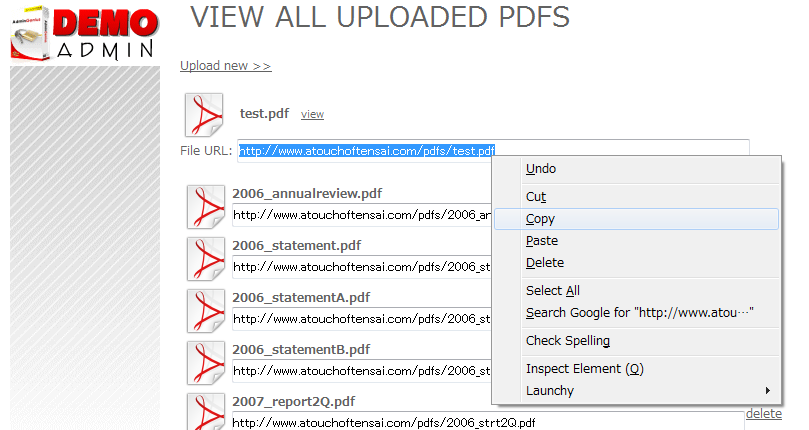
- On the next page, you will see the full URL address of your uploaded file displayed in the "File URL" box. Highlight this URL, and right-click to copy the full address (see fig.1, below).
- Return to the main page of the Admin section.
- Click on your page to update, e.g. "Page Contents > Home".
- Type some text into the "Page Text" box, e.g. "Sample PDF >>".
- Highlight the text, and push the "Insert/edit link" button (see fig.2, below).

- In the popup, paste the full URL address of the file into the "Link URL" box (see fig.3, below).

- You might also like to change the "Target" selection to "Open in new window (_blank)", so that the PDF will open in a new window when clicked.
- Click the "Insert" button.
- Confirm and save the changes.